
Appearance
Bot Builder
The Bot Builder is a powerful visual flow editor that enables businesses to create custom WhatsApp chatbot flows without writing any code. This intuitive drag-and-drop interface allows you to design sophisticated conversation flows, automate customer interactions, and deploy intelligent WhatsApp bots that handle everything from basic customer service to complex e-commerce transactions.
Overview
The Bot Builder provides a complete solution for creating, managing, and deploying custom WhatsApp chatbot flows. With its visual interface and comprehensive feature set, you can build sophisticated conversational experiences that:
- Automate Customer Support - Handle frequently asked questions, provide product information, and offer 24/7 assistance
- Drive Sales - Guide customers through product discovery, recommendations, and purchasing decisions
- Streamline Operations - Process orders, schedule appointments, and manage customer data automatically
- Scale Personalized Interactions - Deliver tailored experiences while handling high conversation volumes
Accessing Bot Builder
To access Bot Builder:
- Navigate to Dashboard from main navigation
- Select Bot Management from sidebar menu
- Click on Bot Builder to access flow management interface
Flow Management Interface
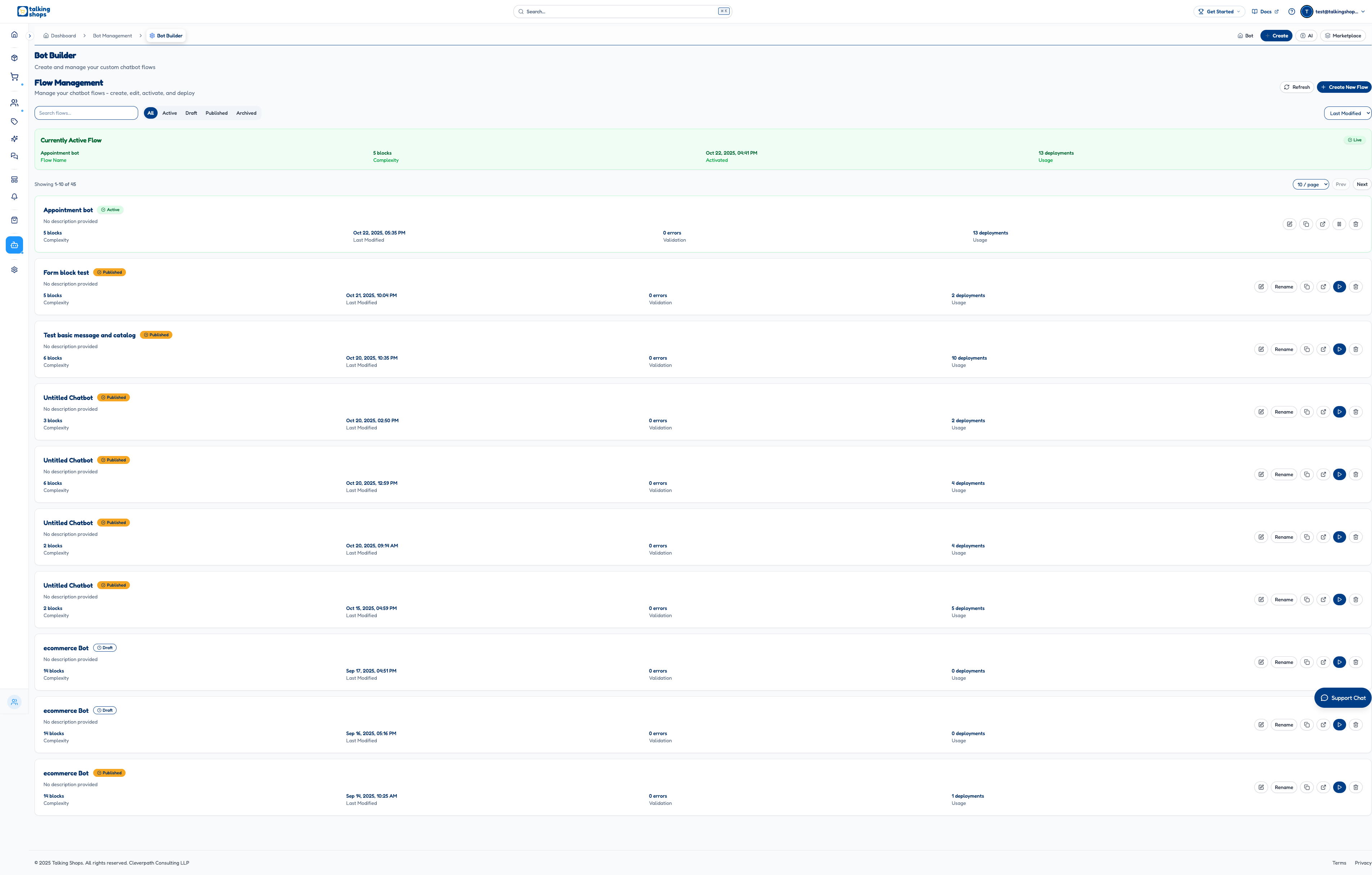
The main Bot Builder interface provides comprehensive flow management capabilities:
Header Section
- Refresh Button: Update flow list with latest data
- Create New Flow Button: Start building a new conversation flow from scratch
Search and Filter Controls
- Search Bar: Find specific flows by name or description
- Status Filters: View flows by status (All, Active, Draft, Published, Archived)
- Sort Options: Organize flows by last modified, creation date, or alphabetical order
- Pagination Controls: Navigate through large numbers of flows with customizable page sizes
Currently Active Flow Display
When a flow is currently active, it's displayed in a prominent green card showing:
- Flow Name: The currently active flow's name
- Complexity: Number of conversation blocks in the flow
- Activated Date: When the flow was last activated
- Usage Statistics: Deployment count and interaction metrics
Flow Cards
Each flow is displayed as a comprehensive card containing:
Flow Information
- Flow Name: Customizable name for easy identification
- Status Badge: Visual indicator (Active, Published, Draft, Archived)
- Description: Brief description of the flow's purpose
- Metrics: Block count, validation errors, deployment history
Action Buttons
- Edit: Open the flow in the visual editor for modifications
- Rename: Change the flow name (available for inactive flows)
- Duplicate: Create a copy of the flow for rapid iteration
- Copy URL: Get a direct link to share the flow with team members
- Activate/Deactivate: Deploy or remove the flow from live WhatsApp interactions
- Delete: Permanently remove the flow (with confirmation dialog)
Visual Flow Editor
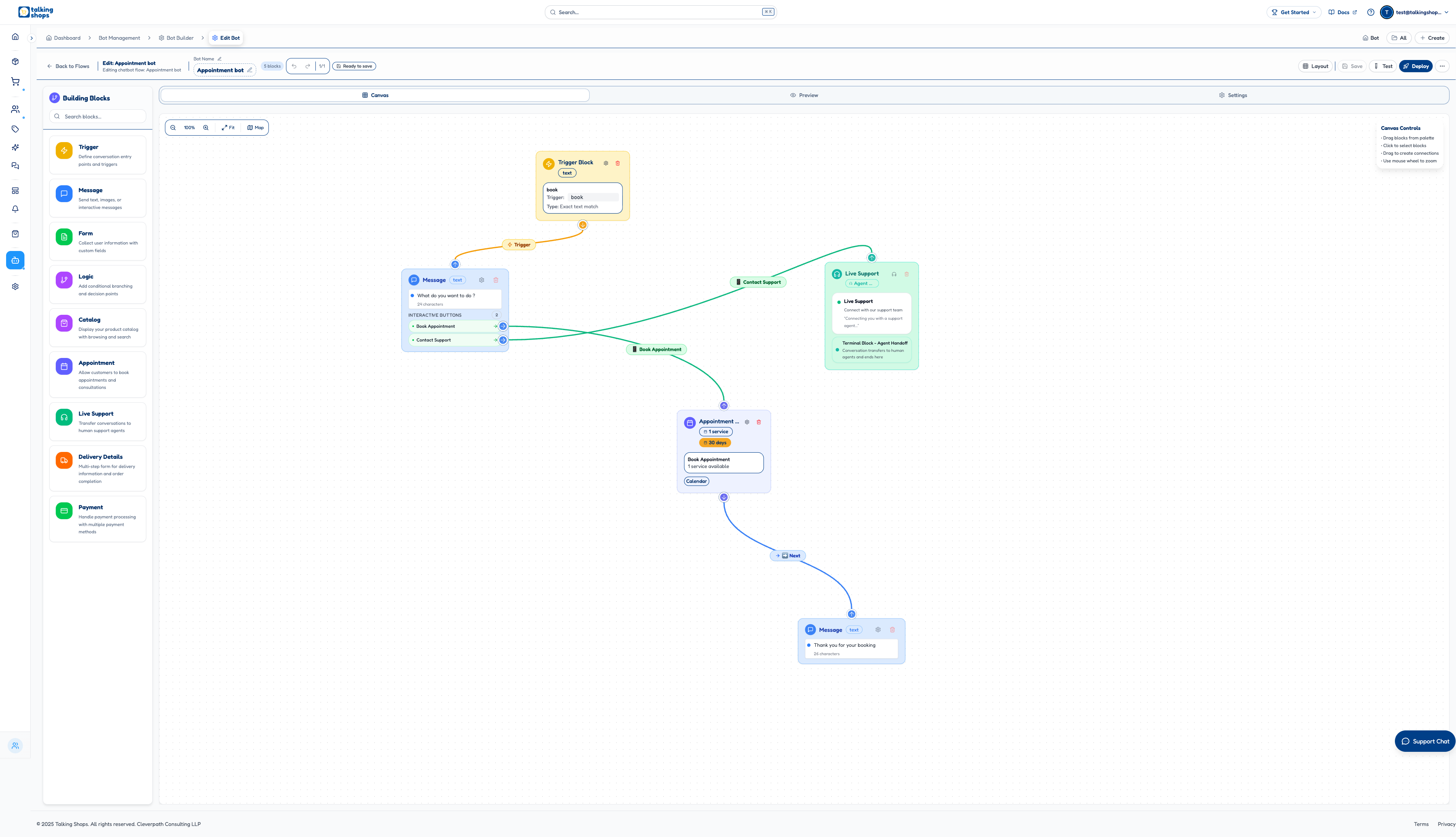
Clicking "Create New Flow" or editing an existing flow opens the visual flow editor, which consists of:
Main Components
- Canvas: The main workspace where you build your conversation flow
- Building Blocks Palette: Contains all available block types for constructing flows
- Properties Panel: Configuration options for selected blocks
- Toolbar: Save, test, and deploy controls
Building Blocks Categories
Trigger Blocks
Define conversation entry points and triggers for when your bot should initiate conversations.
Trigger Block Types
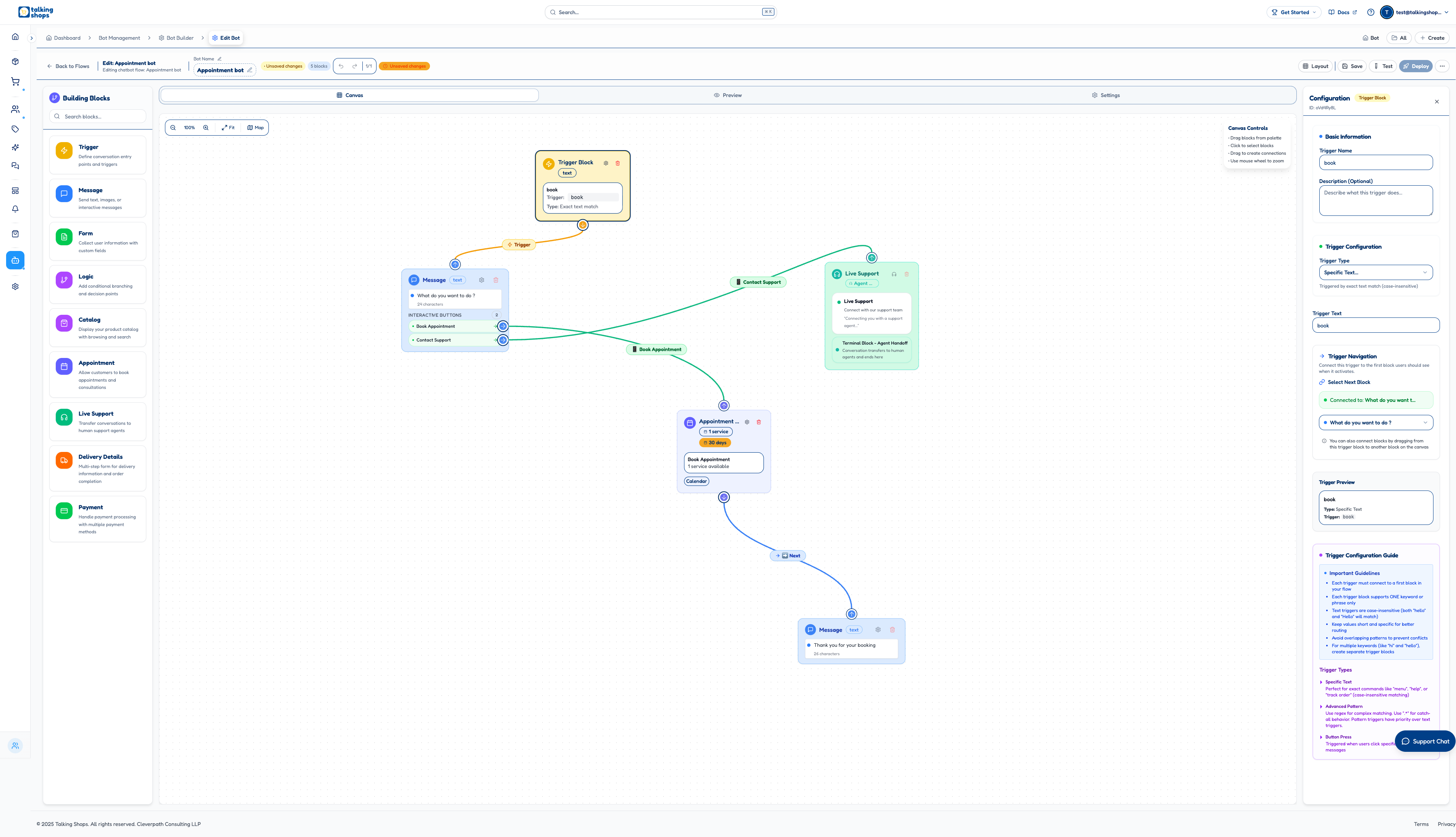
Specific Text Trigger
- Purpose: Responds to exact text matches (case-insensitive)
- Use Case: Perfect for commands like "menu", "help", "track order"
- Configuration:
- Trigger Name: Internal name for the trigger
- Trigger Text: The exact text that activates this trigger
- Next Block Connection: Connect to the first block in your conversation flow
Advanced Pattern Trigger
- Purpose: Uses regex patterns for complex matching
- Use Case: Catch multiple variations or complex input patterns
- Special Features:
- Use
.*for catch-all behavior - Pattern triggers have priority over text triggers
- Use
Button Press Trigger
- Purpose: Responds when users click specific buttons in your messages
- Use Case: Handle interactive button selections from previous messages
Message Blocks
Send various types of messages to users with rich formatting and interactive elements.
Message Block Capabilities
- Text Messages: Send plain text with WhatsApp formatting support
- Character Counter: Real-time character count respecting WhatsApp limits
- Variable Support: Insert dynamic content using
syntax - Multi-language Support: Create messages in different languages
- Formatting Options: Bold, italic, strikethrough, and code formatting
Media Messages: Send rich media content
- Images: JPG, PNG formats with captions
- Videos: MP4 format with thumbnails
- Documents: PDF and other document types
- File Size Limits: Automatic validation against WhatsApp Business API limits
Interactive Messages: Create engaging conversations
- Quick Reply Buttons: Up to 10 buttons for quick responses
- Call-to-Action Buttons: Phone and website buttons
- List Messages: Organized options with titles and descriptions
- Interactive Elements: All buttons support block navigation
Advanced Message Features
- Text Input Collection: Allow users to type custom responses
- Conditional Responses: Show different messages based on user data
- External API Integration: Fetch dynamic content before sending
- Message Templates: Use pre-approved WhatsApp templates when required
Form Blocks
Collect structured user information with comprehensive validation and conditional logic.
Form Field Types
- Text Input: Single-line and multi-line text fields
- Number Input: Integer and decimal number validation
- Email Fields: Automatic email format validation
- Phone Fields: Phone number format validation
- Date Fields: Calendar selection for dates
- Time Fields: Time picker for appointments
- Select Fields: Single and multiple choice dropdowns
- Address Fields: Complete address forms with validation
- File Upload: Collect files from users
Form Configuration Options
- Field Validation: Required fields, format validation, custom rules
- Conditional Logic: Show/hide fields based on previous answers
- Progress Indicators: Multi-step forms with progress bars
- Custom Styling: Field labels, placeholders, help text
- Data Storage: Automatic form data storage and variable assignment
Form Success/Error Handling
- Success Messages: Customizable confirmation messages
- Error Messages: Detailed error descriptions and retry options
- Success Navigation: Route to different blocks based on form completion
- Data Integration: Send form data to external APIs and databases
Logic Blocks
Add sophisticated conditional branching and decision points to create intelligent conversation flows.
Condition Types
- Text Matching: Exact match, contains, starts with, ends with, regex
- Number Comparisons: Equal, not equal, greater than, less than, between
- Date Comparisons: Before, after, between dates with relative options
- Variable Checks: Check if variables exist, are empty, or meet criteria
- API Responses: Make API calls and branch based on response data
Logic Configuration
- Multiple Conditions: Combine conditions with AND/OR logic
- Nested Conditions: Create complex decision trees
- Default Paths: Fallback routes when no conditions match
- Random Selection: Randomly choose from multiple paths
- Weighted Selection: Probabilistic branching for A/B testing
Advanced Logic Features
- Variable Manipulation: Set, modify, and delete variables
- Mathematical Operations: Perform calculations on variables
- String Operations: Text manipulation and formatting
- Array Operations: Handle lists and multiple values
- External Data: Fetch and process data from APIs
Catalog Blocks
Display your product catalog with powerful browsing, search, and filtering capabilities.
Catalog Display Options
- Product Grid: Visual grid layout with images and prices
- Product List: Detailed list with full descriptions
- Category Navigation: Organize products by categories and subcategories
- Search Functionality: Full-text search across product names and descriptions
- Filter Options: Filter by price, category, availability, custom attributes
Product Information Display
- Product Images: Multiple images with zoom capability
- Pricing: Display prices with currency formatting and discounts
- Inventory Status: Show stock levels and availability
- Product Details: Comprehensive product descriptions and specifications
- Variants: Handle product variations (size, color, etc.)
Catalog Integration
- Real-time Sync: Sync with your existing product catalog
- Cart Integration: Add products to shopping cart directly from catalog
- Wishlist Support: Allow users to save products for later
- Product Recommendations: Show related products and upsells
- Analytics Integration: Track product views and interactions
Appointment Blocks
Allow customers to book appointments and consultations with comprehensive scheduling features.
Scheduling Configuration
- Service Types: Define different services with durations and pricing
- Staff Management: Assign appointments to specific team members
- Time Slots: Create custom time slots with availability rules
- Booking Windows: Set advance booking limits and cutoff times
- Buffer Time: Add breaks between appointments
Calendar Integration
- Google Calendar Sync: Two-way synchronization with Google Calendar
- Calendar Providers: Support for multiple calendar services
- Conflict Prevention: Automatic double-booking prevention
- Timezone Support: Handle multiple timezones automatically
- Recurring Appointments: Support for recurring booking patterns
Appointment Management
- Booking Confirmation: Automatic confirmations with all details
- Reminders: Configure multiple reminder messages
- Rescheduling: Allow customers to reschedule appointments
- Cancellation: Handle cancellations with refund policies
- Follow-up: Automated follow-up messages after appointments
Live Support Blocks
Seamlessly transfer conversations to human support agents when needed.
Agent Routing
- Department Assignment: Route to specific departments (sales, support, etc.)
- Agent Assignment: Route to specific agents based on skills or availability
- Load Balancing: Distribute conversations evenly among available agents
- Priority Queuing: Handle urgent conversations with higher priority
Handoff Features
- Context Transfer: Pass complete conversation history to human agents
- Agent Information: Show agent name, photo, and specialization
- Queue Management: Display estimated wait times and queue position
- Fallback Handling: Re-route if no agents are available
- Quality Monitoring: Track handoff success rates and customer satisfaction
Integration Capabilities
- CRM Integration: Create support tickets in external systems
- Chat Platforms: Integrate with live chat software
- Notification Systems: Alert agents through multiple channels
- Analytics: Track handoff patterns and agent performance
Delivery Details Blocks
Comprehensive delivery information collection with address validation and multiple delivery options.
Address Collection
- Address Forms: Complete address collection with validation
- Saved Addresses: Allow users to use previously saved addresses
- Address Validation: Real-time address validation and correction
- Geocoding: Convert addresses to coordinates for delivery planning
- Multiple Addresses: Support for billing and shipping addresses
Delivery Options
- Delivery Methods: Standard, express, same-day, scheduled delivery
- Delivery Zones: Define delivery areas with different pricing
- Time Slots: Allow customers to choose delivery time windows
- Pricing Calculator: Calculate delivery costs based on location and options
- Special Instructions: Collect delivery preferences and instructions
Order Integration
- Cart Validation: Ensure cart contents meet delivery requirements
- Order Creation: Automatically create orders with delivery details
- Inventory Check: Verify product availability for delivery
- Payment Integration: Connect to payment processing for delivery fees
- Tracking: Provide order tracking and delivery updates
Payment Blocks
Handle comprehensive payment processing with multiple payment methods and security features.
Payment Methods
- Online Payments: Credit card, debit card, net banking
- UPI Payments: Support for all major UPI apps
- Digital Wallets: Integration with popular wallet services
- Cash on Delivery: Collect payment on delivery
- EMI Options: Installment payment plans
Gateway Integration
- Multiple Providers: Support for Razorpay, Stripe, PayPal, etc.
- Test Mode: Sandbox testing for payment flows
- Security: PCI-compliant payment processing
- Failure Handling: Graceful handling of payment failures
- Retry Logic: Automatic retry for failed payments
Payment Features
- Amount Calculation: Dynamic pricing based on cart contents
- Currency Support: Multiple currencies with real-time conversion
- Discounts and Coupons: Apply promotional codes and discounts
- Receipt Generation: Automatic payment receipts and invoices
- Refund Processing: Handle refunds and partial refunds
Canvas Controls
The canvas provides intuitive controls for building flows:
- Zoom Controls: Zoom in/out for detailed work or overview
- Fit to View: Automatically adjust zoom to show entire flow
- Minimap: Toggle overview map for navigation in large flows
- Grid Layout: Organized space for arranging conversation blocks
- Connection Validation: Visual feedback for valid and invalid connections
Tabs
The editor includes three main tabs:
Canvas Tab
Main workspace for building and editing your conversation flow.
Preview Tab
Test your flow in a simulated WhatsApp environment before deployment.
Settings Tab
Configure flow-level settings including:
- Basic Information: Flow name, description
- Activation Settings: When and how flow should trigger
- Integration Settings: Connect to external systems and APIs
Connection Types and Flow Logic
The Bot Builder supports multiple types of connections between blocks:
Connection Types
- Next Connections: Sequential flow progression (blue arrows)
- Button Connections: Route based on button selections (green arrows)
- Conditional Connections: Route based on logic conditions (purple dashed arrows)
- Trigger Connections: Connect triggers to starting blocks (yellow arrows)
Flow Validation
- Real-time Validation: Immediate feedback on flow structure
- Error Highlighting: Visual indicators for configuration issues
- Connection Validation: Prevent invalid connections and circular references
- Completeness Checking: Ensure all required connections are made
Build Your First Bot: Step-by-Step Tutorial
Let's create a basic greeting bot that automatically responds to common greetings. This tutorial will walk you through the entire process from creating a new flow to deploying your first bot.
Step 1: Create a New Flow
Navigate to Bot Builder
- Go to Dashboard → Bot Management → Bot Builder
- Click "Create New Flow" button
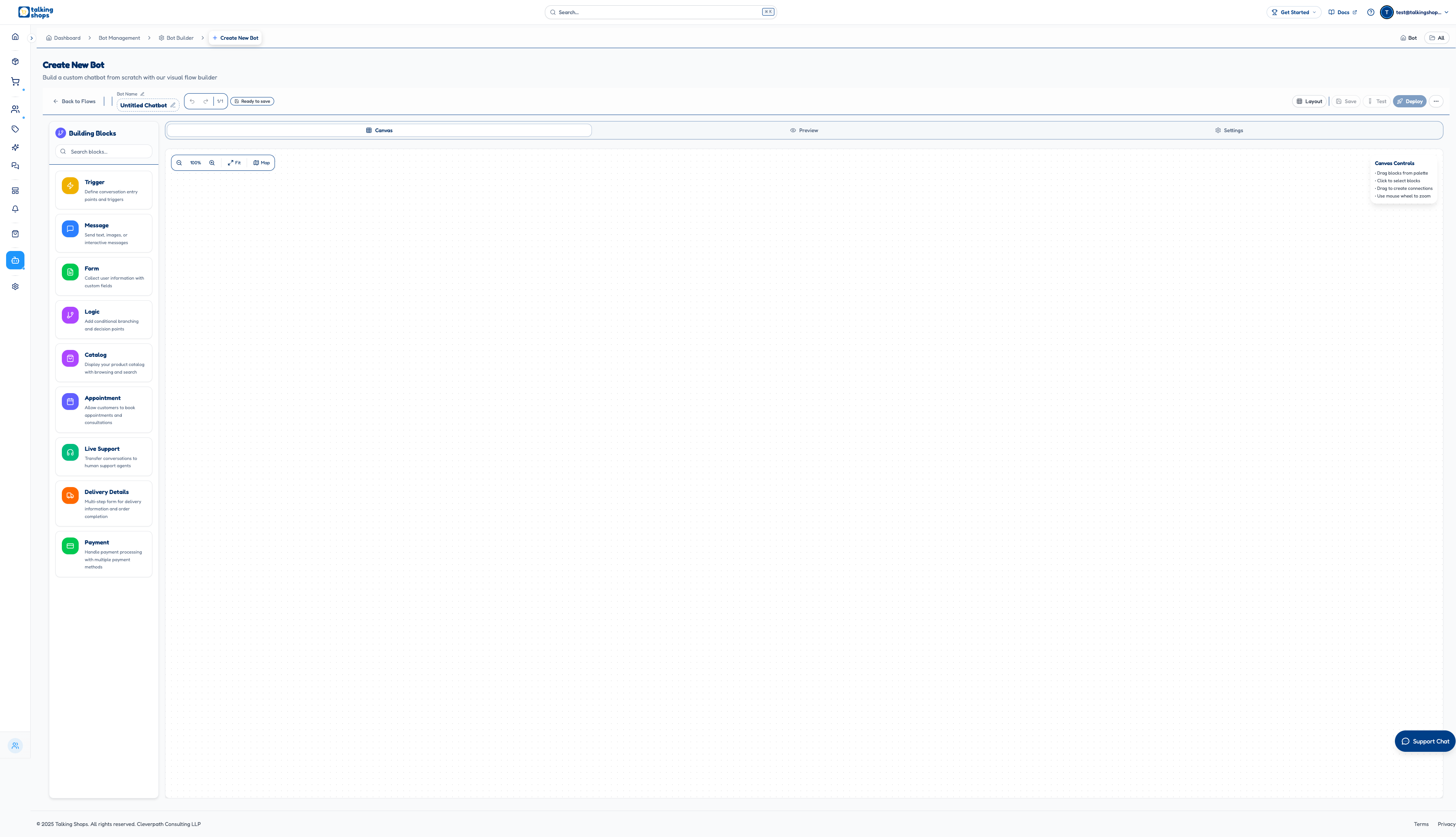
Name Your Bot
- Click on the "Untitled Chatbot" title at the top
- Enter "Greeting Bot" as the name
- Add a description like "A simple bot that responds to greetings"
Step 2: Add Your First Trigger
Add a Trigger Block
- In the Building Blocks palette, find the Trigger category
- Drag a "Specific Text Trigger" block to the canvas
- Configure the trigger:
- Trigger Name: "Hello Greeting"
- Trigger Text: "hello"
- Description: "Responds when users say hello"
Add Multiple Greeting Triggers
- Add another trigger for "hi"
- Add a trigger for "good morning"
- Add a trigger for "hey"
Step 3: Create Response Messages
Add Message Blocks
- From the Building Blocks palette, add Message blocks
- Create responses for each trigger:
- For "hello" → "Hello! How can I help you today?"
- For "hi" → "Hi there! What can I do for you?"
- For "good morning" → "Good morning! How may I assist you?"
- For "hey" → "Hey! Welcome to our service!"
Connect Triggers to Messages
- Drag from each trigger block to its corresponding message block
- Ensure green checkmarks appear showing valid connections
Step 4: Add a Default Response
- Create a Catch-all Trigger
- Add an "Advanced Pattern Trigger"
- Set the pattern to ".*" (catches everything)
- Connect it to a message: "I'm here to help! Type 'menu' to see options."
Step 5: Add Interactive Options
- Create a Menu System
- Add a trigger for "menu"
- Connect to an Interactive Message block
- Configure buttons:
- "Products" → connects to catalog
- "Support" → connects to live support
- "About" → connects to about message
Step 6: Test Your Bot
Use the Preview Tab
- Click the Preview tab at the top
- Test different greeting messages
- Verify all connections work properly
Debug Issues
- Check for validation errors (shown in red)
- Ensure all triggers are connected to message blocks
- Verify message content fits WhatsApp limits
Step 7: Save and Deploy
Save Your Flow
- Click the Save button in the toolbar
- Wait for the save confirmation
Test Your Flow
- Click the Test button
- Test in the preview environment one more time
Deploy Your Bot
- Click the Deploy button
- Confirm deployment when prompted
- Wait for activation confirmation
Step 8: Activate Your Flow
Return to Flow Management
- Click "Back to Flows" to return to the flow list
Activate Your Greeting Bot
- Find your "Greeting Bot" in the list
- Click the Activate button (play icon)
- Confirm activation when prompted
Verify Activation
- Look for the green "Active" badge
- Check that your bot appears in the "Currently Active Flow" section
Flow States and Lifecycle
Draft State
- Purpose: Initial development and testing phase
- Capabilities: Full editing, testing, and modification
- Visibility: Only visible to flow creators and editors
- Deployment: Cannot be activated until validation errors are resolved
Published State
- Purpose: Ready for deployment but not currently active
- Capabilities: Limited editing, configuration changes
- Visibility: Visible to all team members
- Deployment: Can be activated to become the live flow
Active State
- Purpose: Currently handling live WhatsApp conversations
- Capabilities: Read-only access for monitoring
- Visibility: Live to end users via WhatsApp
- Management: Can be deactivated but not modified while active
Archived State
- Purpose: Historical reference and compliance
- Capabilities: No editing, viewing only
- Visibility: Hidden from default views
- Restoration: Can be restored to draft state for reactivation
Advanced Features
Variables and Context Management
- Session Variables: Store user input throughout conversation sessions
- Global Variables: Access system-wide data and configurations
- Context Passing: Transfer information between different flow segments
- Data Persistence: Save conversation data for future interactions
Integration Capabilities
- REST API Integration: Connect to any external API endpoint
- Webhook Support: Real-time data synchronization with external systems
- Authentication: Secure API calls with various authentication methods
- Data Mapping: Transform and format data between systems
Testing and Validation
- Flow Testing: Interactive testing environment for flow validation
- Error Checking: Automatic detection of configuration issues
- Performance Monitoring: Track flow execution times and success rates
- User Testing: Preview flows from a user perspective
Analytics and Insights
- Conversation Metrics: Track message volumes, completion rates, user engagement
- Performance Analytics: Monitor flow efficiency and identify bottlenecks
- User Behavior Analysis: Understand how users interact with your flows
- A/B Testing: Compare different flow variations for optimization
Best Practices
Flow Design Principles
- Clear Conversation Paths: Design logical and intuitive conversation flows
- Error Handling: Provide helpful error messages and recovery options
- Progressive Disclosure: Present information gradually to avoid overwhelming users
- Consistent Branding: Maintain consistent tone and messaging throughout flows
Performance Optimization
- Minimize Block Count: Use efficient flow designs to reduce complexity
- Optimize API Calls: Cache responses and minimize external dependencies
- Monitor Resource Usage: Track flow performance and resource consumption
- Regular Maintenance: Update flows regularly to ensure optimal performance
Security Considerations
- Data Validation: Validate all user inputs and external data
- Access Controls: Implement proper authentication and authorization
- Privacy Compliance: Ensure compliance with data protection regulations
- Audit Logging: Maintain logs of flow executions and modifications
Troubleshooting
Common Issues
- Validation Errors: Check configuration settings and block connections
- Performance Issues: Review flow complexity and external dependencies
- Integration Failures: Verify API endpoints and authentication credentials
- User Experience Problems: Test flows from different user perspectives
Support Resources
- Documentation: Comprehensive guides and tutorials
- Community Forum: Connect with other Bot Builder users
- Technical Support: Access to expert assistance for complex issues
Integration with Talking Shops Platform
WhatsApp Business API
- Template Management: Use approved WhatsApp message templates
- Message Formatting: Ensure compliance with WhatsApp messaging guidelines
- Rate Limiting: Manage message sending frequencies
- Quality Metrics: Monitor message quality ratings and user feedback
E-commerce Integration
- Product Catalog: Access product information in bot conversations
- Order Processing: Handle order creation and status updates
- Payment Integration: Process payments through connected payment gateways
- Inventory Management: Check product availability and update stock levels
Analytics Integration
- Conversation Tracking: Monitor bot interactions alongside other customer touchpoints
- Revenue Attribution: Track sales generated through bot conversations
- Customer Journey Mapping: Understand how bots contribute to the overall customer experience
- Performance Benchmarking: Compare bot performance against other communication channels
The Bot Builder empowers businesses to create sophisticated WhatsApp automation without technical expertise, enabling scalable, personalized customer interactions that drive engagement and revenue.